
Nowadays, smartphones have become a go-to device for everyone. It is the only device that everyone has in their pocket. It is nothing short of a multi-tasking device with which people do official as well as personal tasks. Modern smartphones have become so technology-driven that one can find out incredible camera features, prudent hardware, seamless software, and monstrous storage. One can do almost every task with them. Therefore, a lot of people store a lot of media and official files right under the hood of their smartphones.
Why it’s important to take the backup on Android phones?
But, as it’s a technical device it may encounter any virus or technical problem that may cause loss of data. Or, you may lose your smartphone while traveling somewhere. Thus, it becomes highly essential to have a consistent backup of your Android phone to save your data. Owning a phone comes with a threat of breakage, getting misplaced, or being stolen. All these issues further bring in the financial burden of replacing your phone. Many people not having a backup of their calendar, photos, important documents, etc. adds to the stress of losing essential and precious data that they have created over time.
No wonder, backing up your Android phone has become a new necessity but one cannot deny the fact that it can get confusing. The backup process for some Android phones might be different. But, somehow, every Android phone has an almost similar process to take the backup. So, to solve the mystery here is a simple method to back up almost all Android phones:
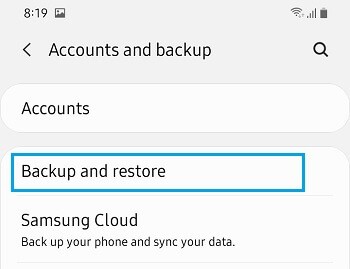
In every Android phone, you can find Google’s backup service. However, Samsung offers its own Galaxy backup service along with a Google backup plan. Thus, you can use either of the two.
How to take back up of apps, data, and settings?
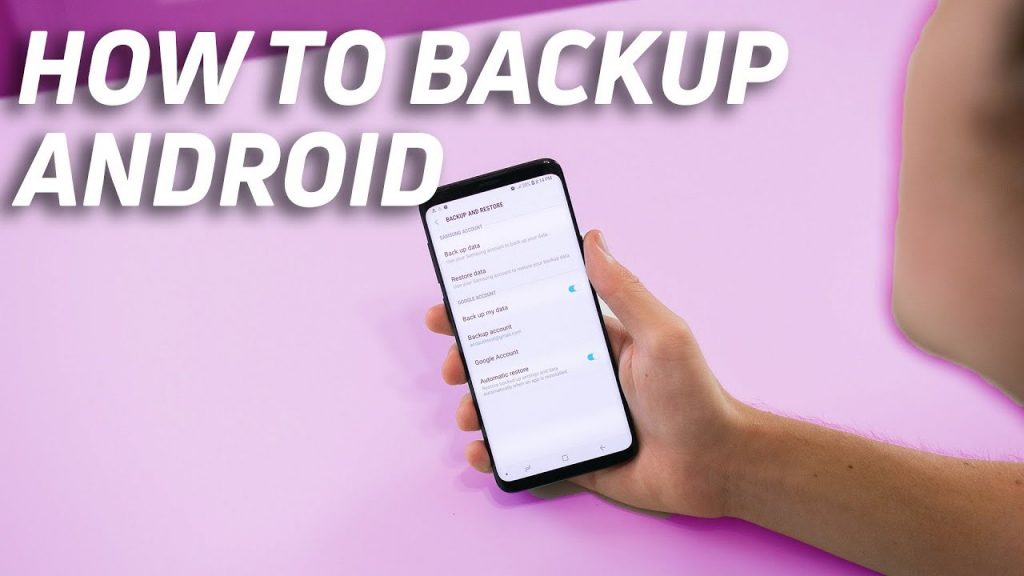
- To check the backup settings, open the Settings app on any Android device.
- Click on System> Backup.
- Further comes the option of “Back up to Google Drive.” If that option is turned off, then ensure to turn it on. You get the option to select the Google account you wish you store your backups to.
- Click on the Accounts option if there are more than one Google accounts signed on your phone.
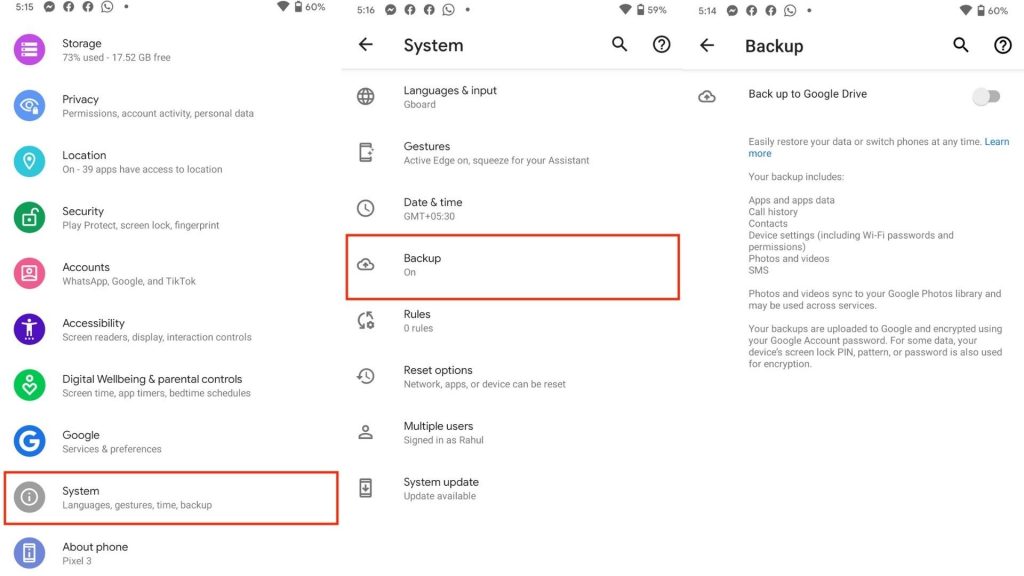
After turning on the backup, your Android phone will start backing up your essential information like:
- contacts
- wallpapers
- apps
- display settings
- date and time
- Gmail settings
- Wi-Fi networks and passwords
- Google calendar events and settings
- Language and input settings
- Applications
You can see the data categories available under the Active Backups section. Plus, the last information was backed up by you. Click on any section such as App data to see the information which is backed up. For instance, if you click on the Photos and Videos options, the backup settings app will automatically show the Google photos app.
To manually start a backup, a person needs to visit this section and click on the Back Up Now option. However, ensure that your Android is connected to the Wi-Fi network and is plugged into a charger. If you are upgrading phones, start the manual backup before you set up the new phone.
Google backup service is available for all Android users but a device like Samsung offers their solution called Samsung Cloud where you can store all the information. All you need is to create a Galaxy account to save all your data in the Samsung Cloud. However, with Google’s default backup service you should always double-check. This way you won’t make any mistakes. The above-mentioned process to track backup settings in your Android phone is simple to follow.
The benefit of using Google Backup

The ultimate benefit of using Google backup is that you can easily switch to any smartphone brand and access the data easily. However, Samsung Cloud will work only on Samsung smartphones.
Never forget to back up your files
There are several options to back up your downloaded or stored files on your Android phone.
The first way
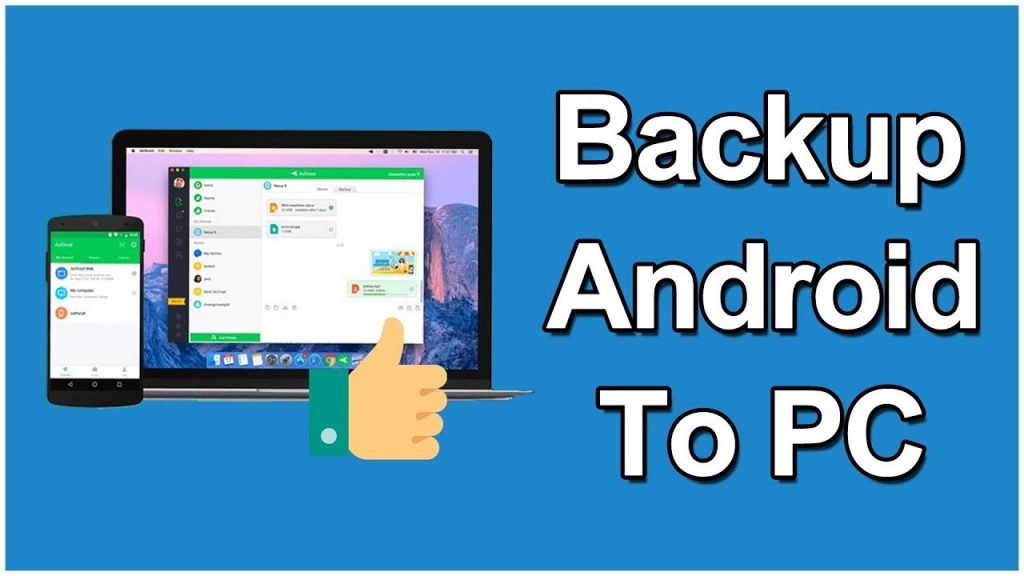
- Connect your phone with a computer or laptop to manually move your files. And
The second way
You can also use cloud storage services such as Google Drive or Dropbox.
You need to set up Google Drive or Dropbox on your phone. Later select the files or folders which you wish to upload. The app will ultimately do its thing.
Conclusion
In this way, you can backup your Android phone’s data and keep all the information intact for your future usage without losing it due to any unfortunate incident.